Before You Begin
Extract the .zip Archive First
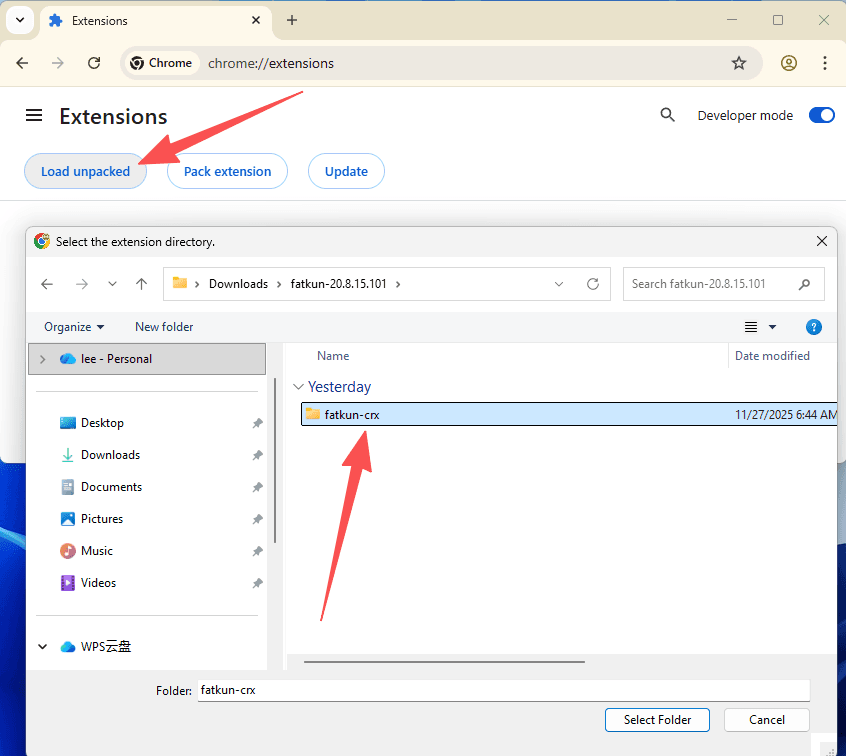
After downloading the .zip package, extract it into a regular folder. When loading the extension, select the extracted folder rather than the .zip file.
Keep the Folder in a Permanent Location
Store the extracted folder in a safe directory (e.g., Documents). Deleting or moving it later will cause the extension to unload on browser restart.
Pin Extension to Your Toolbar
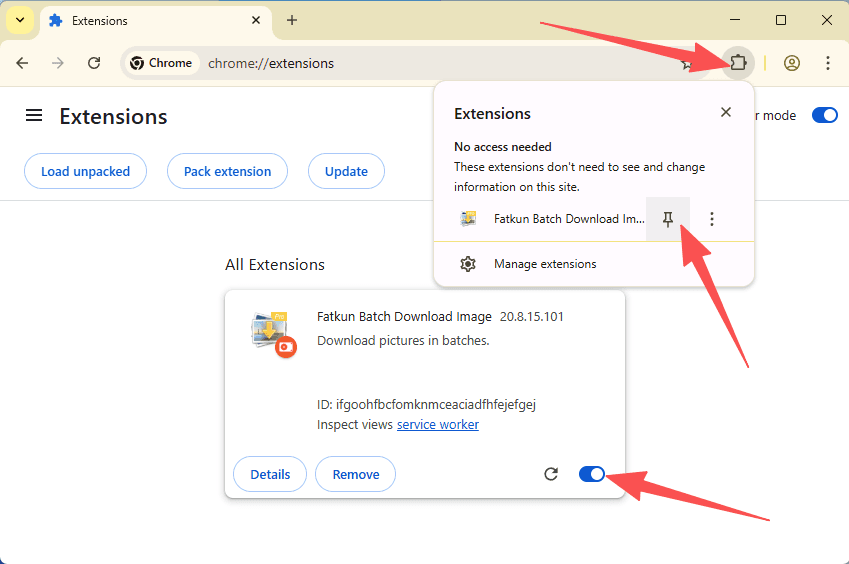
Once installed, click the puzzle icon in the top-right corner of your browser and click the pin icon next to Fatkun for 1-click access.
Chrome Installation Steps
Complete these 4 simple steps to load and activate the extension
Open Chrome Extensions Page
Copy the URL below, paste it into Chrome's address bar and press Enter, or navigate via Menu (⋮) → Extensions → Manage Extensions.
chrome://extensions/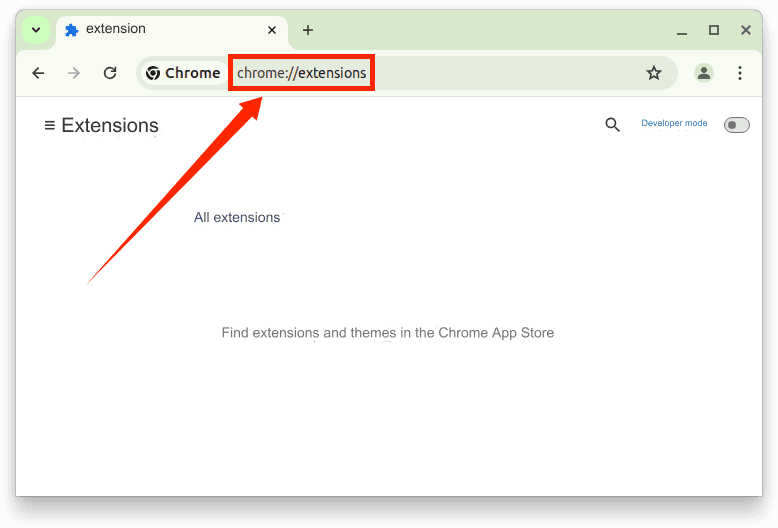
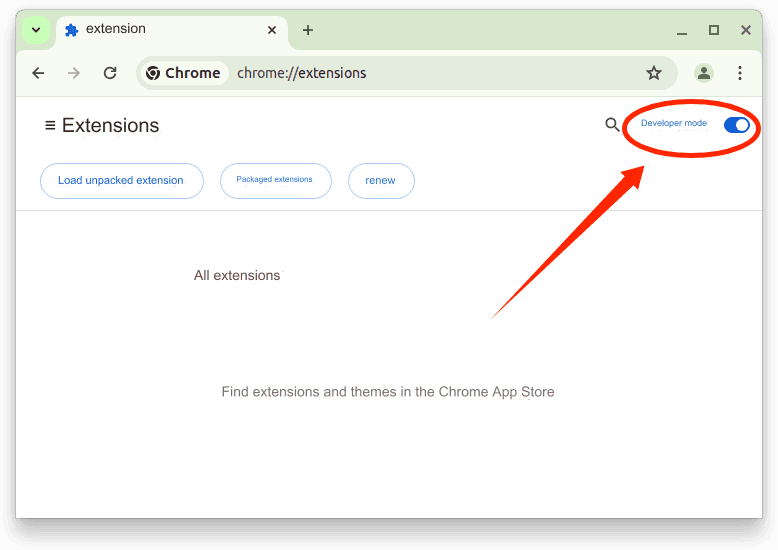
Enable Developer Mode
Toggle on the 'Developer mode' switch in the top-right corner of the Extensions management page.
Load Unpacked Extension
Click the 'Load unpacked' button in the top-left corner and select the extracted extension folder.
Complete & Pin to Toolbar
The extension will appear in your list. Ensure its toggle is enabled, then pin the icon to your browser toolbar for quick access.
Important: Do Not Delete the Extracted Folder
Note: Extensions installed in Developer Mode may show a prompt upon browser restart. Keep the extracted folder in a permanent location and choose to keep the extension active.
Ready to Go? Start Collecting & Localizing
Open any e-commerce product page (1688, Taobao, Tmall, Amazon, Temu, AliExpress) and click the Fatkun toolbar icon to batch extract 4K gallery, SKU, and detail images or sync products to your workspace.